List your TPT products on Etsy, Payhip, Gumroad and more
Many sellers are adding a second place to sell. The catch: Etsy, Payhip, Gumroad, TES, Eduki and Classful have no product import, so every listing is a form to fill in. Storeroom makes that fast in two ways.
Way 1: copy sheets (free)
In Storeroom › Export, the "Etsy, Payhip, Gumroad, TES, Eduki, Classful" card makes a spreadsheet for the site you pick, with each field already shaped for it:
| Site | Prepared for you |
|---|---|
| Etsy | Title cut to Etsy's 140 characters; up to 13 tags of 20 characters or fewer; plain-text description; price; image links |
| Payhip | Title, formatted description, price, images |
| Gumroad | Name, formatted description, price, a short summary, a URL slug and tags |
| TES | Title, description, student age range (from your grades), main subject, resource type, tags |
| Eduki | Title, description, grades, subject, tags |
| Classful | Title, description, grades, subject, resource type, tags |
Open the sheet in Excel or Google Sheets and copy each cell into the site's new-listing form.
Way 2: the crosslist assistant (Pro, beta)
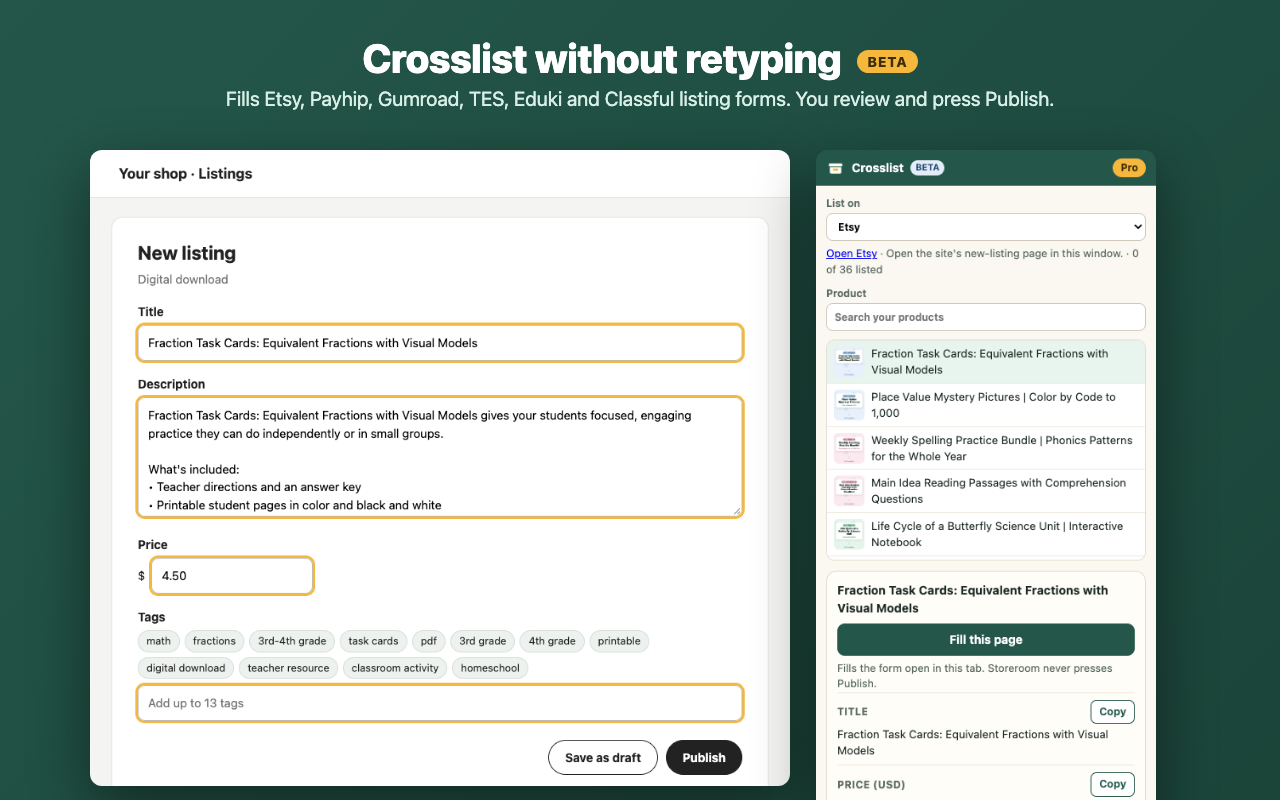
- Sign in to the site and open its new-listing page.
- Open Storeroom › Crosslist › Open the crosslist assistant. It opens beside the page.
- Pick a product and press Fill this page. The first time, Chrome asks permission for that one site.
- The assistant fills the title, description, price and tags, and shows which fields it filled. Fields it couldn't find have Copy buttons.
- Upload your product file and images (the assistant can download the images for you), check everything, and press the site's own Publish button. Storeroom never publishes for you.
- Tick Listed on… to track your progress across the store.
Beta: these sites change their forms without warning. If a field doesn't fill, use its Copy button and tell us so we can fix it.
Before you list
- Exclusive Sellers: TPT's Exclusive membership doesn't allow selling your digital teaching resources elsewhere. Clip art, fonts, Boom Cards, courses, physical products and Kindle books are exempt. Details.
- Each marketplace has its own fees and rules; check them before you list. Etsy, for example, charges a small fee per listing.
- Watch for generative-AI rules: TPT asked sellers in October 2026 not to use AI-generated images or text in covers, thumbnails, previews or descriptions. Other sites have their own policies.